Pool service operations platform
Run scheduling, customers, work orders, and field execution from one live system.
AquaTech One gives pool service companies a public website for signup and downloads, plus a protected app for dispatchers, office staff, and technicians working from the same workspace.
Verified company signup
The first admin account must verify email before the workspace is activated.
Separate company workspaces
Each business gets isolated customers, work orders, users, vehicles, and inventory.
Office and field ready
Use the desktop app, mobile browser, or full web app with the same live records.
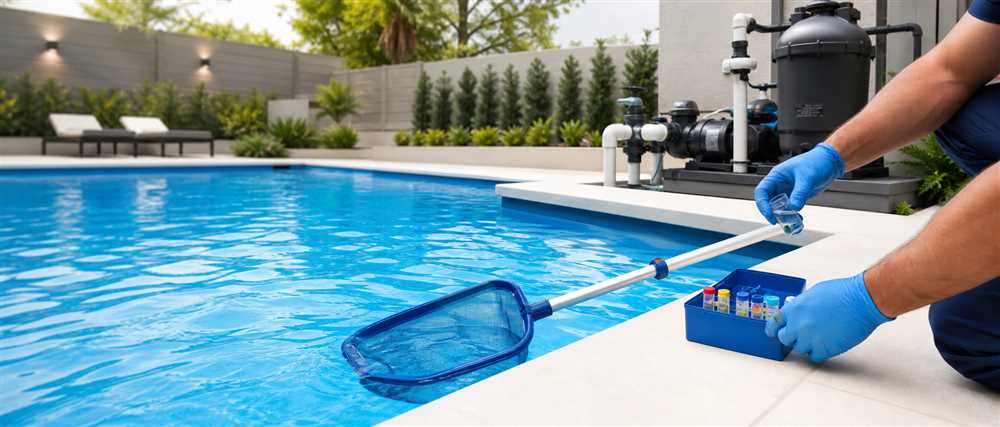
Built for real dispatcher workflows
Keep the front office in control of scheduling, assignment, requested work, and technician availability.
Explore SolutionsAll operational records in one place
Customers, work orders, equipment, routes, printable paperwork, and inventory stay connected.
View ProductWebsite for signup, app for operations
Create the company account here, verify it, then move into the protected app for daily work.
Open Sign In
Solutions
Structure the office side, the field side, and the inventory side of the business from one platform.
AquaTech One is shaped around how pool service companies actually dispatch work, run crews, and track stock.
Scheduling and assignment
Plan daily, weekly, and monthly schedules, keep calendar visibility clean, and assign work to the right technician.
Technician execution
Let technicians view schedules, add notes and photos, request work, and complete assigned jobs without office tools getting in the way.
Truck and retail control
Track per-location counts, vehicle stock, and all-company totals while keeping shared SKUs and names consistent.
Pending review queue
Requested work orders stay separate until an admin reviews, schedules, and assigns them.
Operational calendar
Every scheduled work order appears in daily, weekly, and monthly views with consistent day sizing and clean job cards.
Technician stock view
Each technician can see their assigned vehicle inventory on the dashboard and adjust counts without changing shared item data.
The Product
One operations app for customer records, work order control, schedules, and inventory.
The public website handles discovery and access. The product page explains what teams get once they are inside the app.
Customer accounts
Store names, addresses, contact info, notes, service history, photos, pool details, and equipment on one account.
Work order lifecycle
Create, request, schedule, assign, print, complete, reopen, and review the same work order without context switching.
Calendar views
Daily, weekly, and monthly scheduling stays readable even when the day is full of jobs.
Shared item library
Edit item name, SKU, cost, and pricing once, then keep counts separated by retail location or vehicle.
Printable work orders
Generate clean service paperwork with customer details, schedule date, notes, completion notes, and checklist pages.
Role-based controls
Admins manage customers, scheduling, and item definitions. Technicians stay focused on the work they need to do.
Enterprise
Roll out one operational standard across office desktops, mobile crews, and multiple service locations.
AquaTech One is designed to feel like a real internal system, not a thin demo wrapper over a few forms.
Controlled user setup
The first verified admin creates the workspace and can add technicians or office staff from inside the app.
Isolated workspaces
Each company account is scoped to its own users, schedules, customers, inventory, and records.
Desktop plus browser access
Teams can install the desktop app, open the protected browser app, or use mobile browser access in the field.
Pricing
Choose the rollout that fits the size and operating complexity of the team.
These tiers frame how AquaTech One can be packaged as the website moves from internal rollout to public SaaS.
Smaller crews
Core scheduling, customer records, work orders, and inventory for a growing pool service business.
Field and office
Dispatcher workflows, technician completion, printable work orders, and shared stock visibility.
Multi-location teams
Structured user management, larger deployments, and a cleaner path for more advanced support and onboarding.
Resources
Use the website as the access point for downloads, sign-in, and platform information.
The public site should explain the product clearly and then move real users into the protected app.
Desktop download
Download the Windows installer from any browser as a normal desktop application installer.
+ Download AquaTech One for WindowsWindows may show a SmartScreen warning until the installer is code-signed.
Protected browser app
Verified companies sign in to the live operations app from the browser or install the desktop wrapper.
+ Open the Web AppVerified access only
Public visitors can discover the platform here, but live workspace creation stays behind verified email.
+ Start Account Creation
Support
Get help with AquaTech One.
Use this page for account access, workspace setup, mobile app installation, and operational app issues.
Password recovery
Reset an existing account password from the recovery page. Recovery messages are sent from recovery@aquatechone.com and may appear in spam while the domain is new.
Open Password RecoveryWorkspace signup
Create the first admin account from the public website. The workspace is activated after email verification.
Create AccountDesktop and mobile help
Use the resources page for the desktop installer and app access links. Mobile store availability will be listed there once the apps are approved.
View ResourcesSupport email
For direct help, contact support@aquatechone.com. This mailbox must be enabled before App Store submission.
Email Support
Privacy Policy
How AquaTech One handles account and company operations data.
Effective June 8, 2026. This policy applies to the AquaTech One website, browser app, desktop app, and mobile apps.
Information stored in the service
AquaTech One stores account names, email addresses, workspace information, customer and service-location records, work orders, schedules, equipment records, notes, inventory, and vehicle assignments entered by authorized users.
How information is used
Information is used to authenticate users, operate each company workspace, synchronize records between authorized devices, deliver verification email, and support field and office workflows.
Service providers
AquaTech One uses trusted infrastructure providers for application hosting, secure data storage, and account email delivery. Information is not sold or used for third-party advertising.
Workspace access
Company workspaces are logically separated and require authenticated employee accounts. Administrators control which additional employees can access a workspace.
Retention and deletion
Company data is retained while the workspace exists. Users can delete their account from Options. Deleting the only admin account permanently deletes the entire workspace and its stored operational data.
Your controls
Authorized users can review and update their operational records inside the app. Account deletion instructions are available on the public account-deletion page.
View Account Deletion
Account Deletion
Delete an AquaTech One account from the protected app.
Account deletion is permanent. The only remaining admin account also owns the company workspace, so deleting it removes the workspace and its operational data.
1. Sign in
Open the protected app and sign in to the company workspace using the account that should be deleted.
2. Open Options
Select Options from the app navigation, then select Delete Account.
3. Confirm deletion
The account is removed immediately. Work assigned to a deleted employee becomes unassigned. If the account is the workspace's only admin, the entire workspace is deleted.
Sign In
Open an existing company workspace.
Use your employee email and password. AquaTech One securely routes the account to its company workspace.
For admins and office users
Sign in to schedule jobs, manage customers, adjust inventory, and review requested work orders.
For technicians
Sign in to view assigned jobs, complete work orders, add notes and photos, and update truck counts.
Need a new company account?
Create the first verified admin account from the public website before anyone can sign in.
Forgot your password?
Request a secure one-hour reset link sent from recovery@aquatechone.com.
Reset Password
Password Recovery
Request a secure password reset link.
Enter the account email. AquaTech One handles workspace routing internally and sends recovery instructions when the account exists.
Secure account lookup
The recovery form never reveals whether an email belongs to an account.
One-hour reset link
The link can be used once and expires after one hour.
Other sessions are closed
After the password changes, existing signed-in sessions must authenticate again.
Password Recovery
Choose a new account password.
Use the secure link from the recovery email to replace the current password.
Use a unique password
Choose at least eight characters and avoid reusing a password from another service.
Expired link?
Request another recovery email. Only the most recently issued link remains valid.
Request Another Link
Create Account
Create the first admin account for a new company workspace.
The workspace does not go live until the admin email is verified from the link that gets sent after signup.
1. Enter company details
Enter the company name, first admin name, and the email used to verify ownership. Workspace routing is created internally.
2. Verify the email
Verification emails can land in spam or junk folders, especially while the domain is new.
3. Move into the app
Once verified, the first admin can sign in and create the rest of the office and technician accounts.